WFMQL 📅 Attendance & Leave
📅 Attendance & Leave
⏱️ Attendance Policy
- Work Hours: 9:00 AM – 5:00 PM (Monday to Friday)
- Late Threshold: More than 10 minutes = marked late
- Absence without notice: Considered unexcused and subject to disciplinary action
- Clock-in/Clock-out: Mandatory via Time Tracker Tool
🧾 Attendance Review Schedule
| Interval | Reviewed By | Focus |
|---|---|---|
| Daily | Team Leads | No-shows, late arrivals |
| Weekly | HR | Trends, repeated short absences |
| Monthly | Payroll | Absence deductions, compliance |
📝 Leave Types
| Leave Type | Description | Max Days / Year | Paid |
|---|---|---|---|
| Paid Time Off | Vacation or personal reasons | 20 | ✅ |
| Sick Leave | For medical reasons, doctor note needed | 10 | ✅ |
| Emergency Leave | Family emergency or sudden needs | 5 | ✅ |
| Maternity Leave | As per labor law | Varies | ✅ |
| Unpaid Leave | Exceeds quota, with approval | Case-by-case | ❌ |
🗂️ Leave Application Process
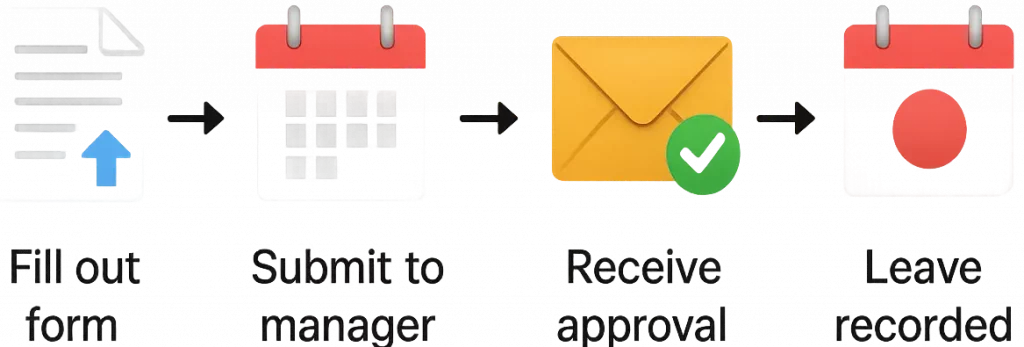
- Go to the Leave Request Form
- Select leave type, date range, and provide a reason
- Submit to your line manager
- Receive approval notification via email
- Approved leave will appear on the Leave Calendar
⏳ Deadline: Submit requests at least 3 business days in advance unless in emergency.
📉 Absence Tracking
- Employees can track their remaining balance via the Absence Dashboard
- Regular reports are generated monthly and sent to managers
🔍 What is Tracked?
We track all types of absences, including:
- ✅ Approved Leave (PTO, Sick, Emergency, etc.)
- ❌ Unexcused Absences (no prior notice)
- 🕒 Partial Absences (late arrival, early departure)
- 🏥 Long-Term Absences (medical leave, maternity/paternity)
Each type of absence must be logged via our attendance system to ensure legal compliance and workforce visibility.
📋 Absence Logging Process
1. Employee Notifies Manager
- Ideally via email or internal platform
- Provide expected return date/time
2. Manager Records in System
- Use the Absence Log Tool or internal HR software
- Categorize correctly (sick leave, unpaid, etc.)
3. HR Reviews for Accuracy
- HR validates if leave was approved
- Unexcused absences flagged for follow-up
4. System Updates
- Absence is reflected in:
- Attendance Dashboard
- Leave Balance
- Payroll impact report
Absence tracking ensures all time away from work is properly recorded, analyzed, and addressed in a fair and transparent way.
📌 Note: Frequent unexcused absences will result in HR review and possible disciplinary action.
📈 Reports & Dashboards
- 🔹 Daily Report: All absences and reasons
- 🔹 Trend Chart: Monthly or quarterly absences
- 🔹 Employee Profile View: Summary of all past absences
❗ Frequent Absences – Escalation Process
- 3+ unexcused absences in 30 days triggers a manager alert
- HR schedules a review meeting with the employee
- Written warning or improvement plan may be issued if justified
- Follow-up tracking for 30–60 days
📎 Supporting Documentation
| Type of Absence | Document Required | Upload Location |
|---|---|---|
| Sick Leave | Doctor’s note (if 2+ days) | Upload Here |
| Emergency Leave | Optional supporting statement | Upload Here |
| Long-Term Leave | Medical certificate | Upload Here |

⚖️ Compliance Notes
- Leave records are maintained for legal compliance
- All documents are stored securely and auditable
- For any discrepancy, contact HR Support
🧾 Attendance Reports
Managers can access:
- Daily attendance logs
- Late/early reports
- Leave balances per team
📎 Related Forms & Resources
💬 Who to Contact?
For any issues with absence logs or disputes, contact:
📧 HR Support → hr@yourcompany.com
🧑💼 Your Line Manager → View via Org Chart